How SMS opt-in works at GymText
Last updated: April 28, 2026
GymText delivers personalized fitness coaching by SMS. After signing up for a program, users receive a daily workout message at the local time they selected. Users can reply to ask questions and get a coaching response. There is no app required — the entire service runs over text.
End users can only opt in through the web signup form described below. Users cannot be added by an agent, by an uploaded list, or by texting a keyword cold — the SMS opt-in keywords (START, UNSTOP, SUBSCRIBE) only resume messaging for a number that previously opted in via the web form and later sent STOP.
The signup flow, step by step
Step 1 — Visit a coach’s program page
Each program has its own signup URL of the form coaching.gymtext.co/signup/<program-id>. There is no other way to start receiving messages. You can walk through a live example at https://coaching.gymtext.co/signup/demo-program.
Step 2 — Complete the fitness questionnaire
Users answer a short questionnaire covering goals, experience, training location, equipment access, and the local time they want to receive their daily workout. Name and email are collected here as well.
Step 3 — Enter mobile number and review the consent boxes
On the final question users enter their U.S. mobile number and see two separate, unchecked-by-default boxes:
- Required: a box agreeing to the Terms of Service and Privacy Policy. The form will not submit without it — the “Start My Journey” button stays disabled until this box is checked.
- Optional: a box expressly consenting to recurring automated SMS. Only users who check this box are added to the SMS audience and receive daily workout messages. Users who skip it can still create an account, but will not receive any text messages until they later text START from the number on file.
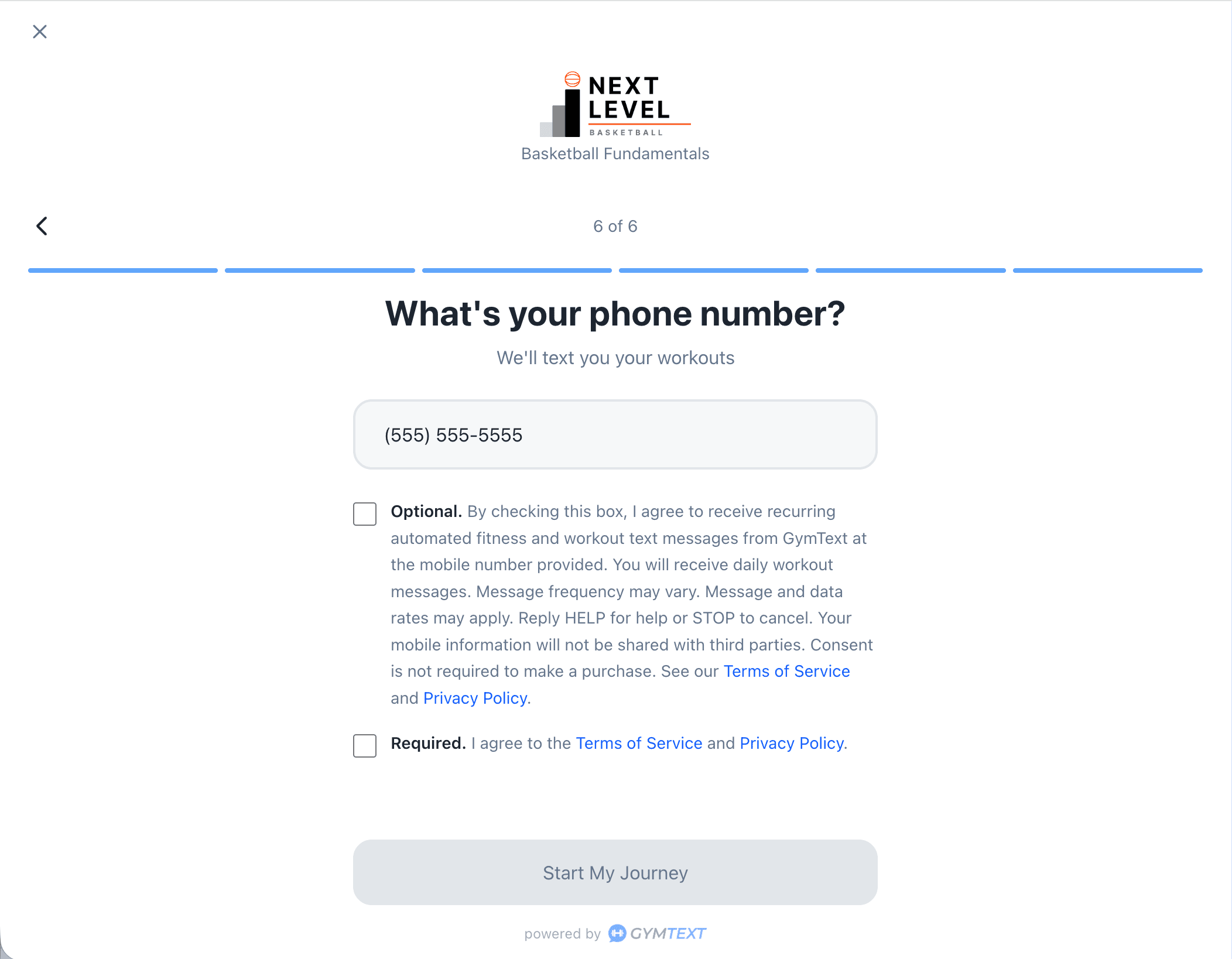
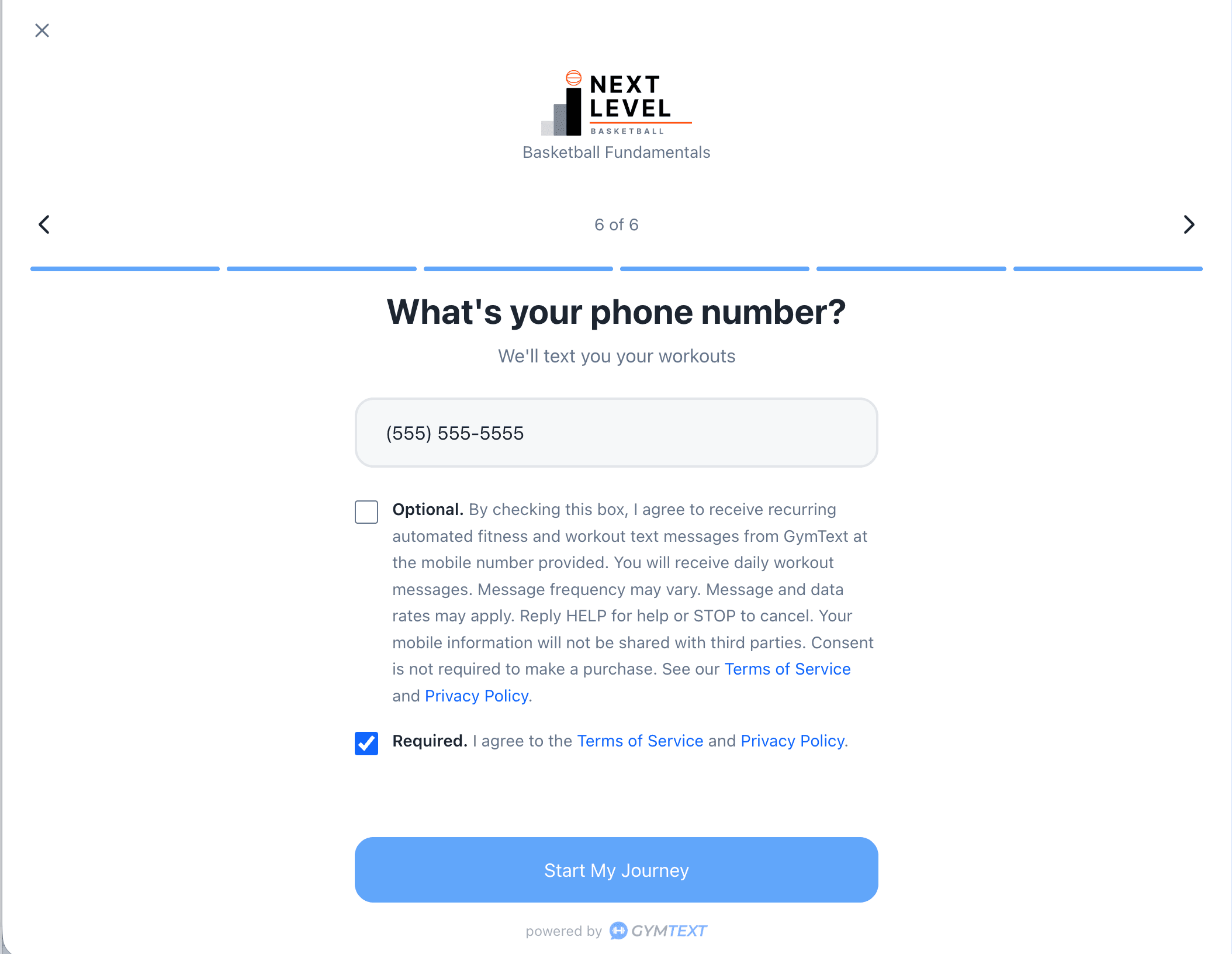
Acceptance of the SMS-consent box is recorded as an smsConsentedAt timestamp on the user’s account before any message is sent.
Step 4 — Receive your welcome text
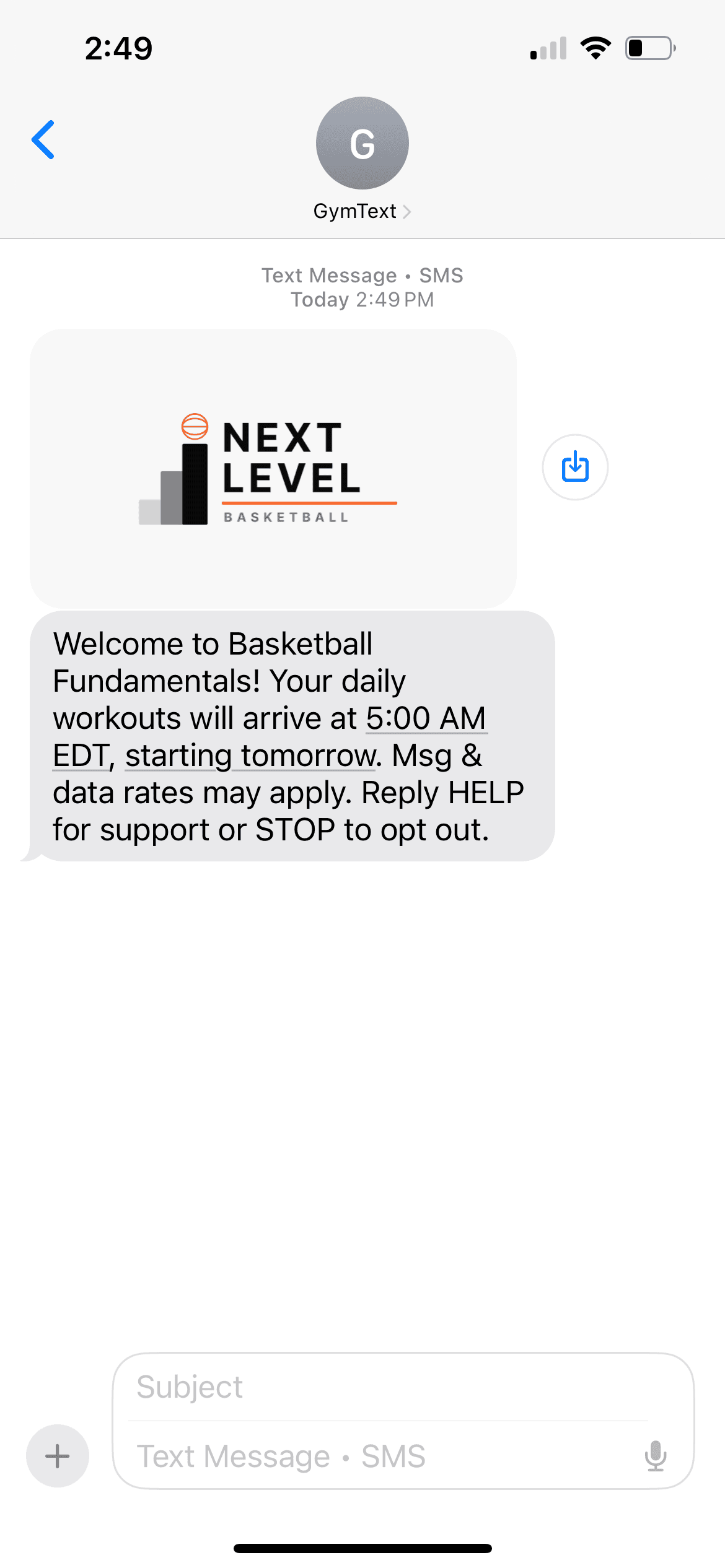
Once the form is submitted with the SMS-consent box checked, GymText immediately sends a one-time welcome SMS confirming the program and the time the daily messages will arrive.
The exact consent language
The SMS-consent checkbox on the signup form displays this language verbatim:
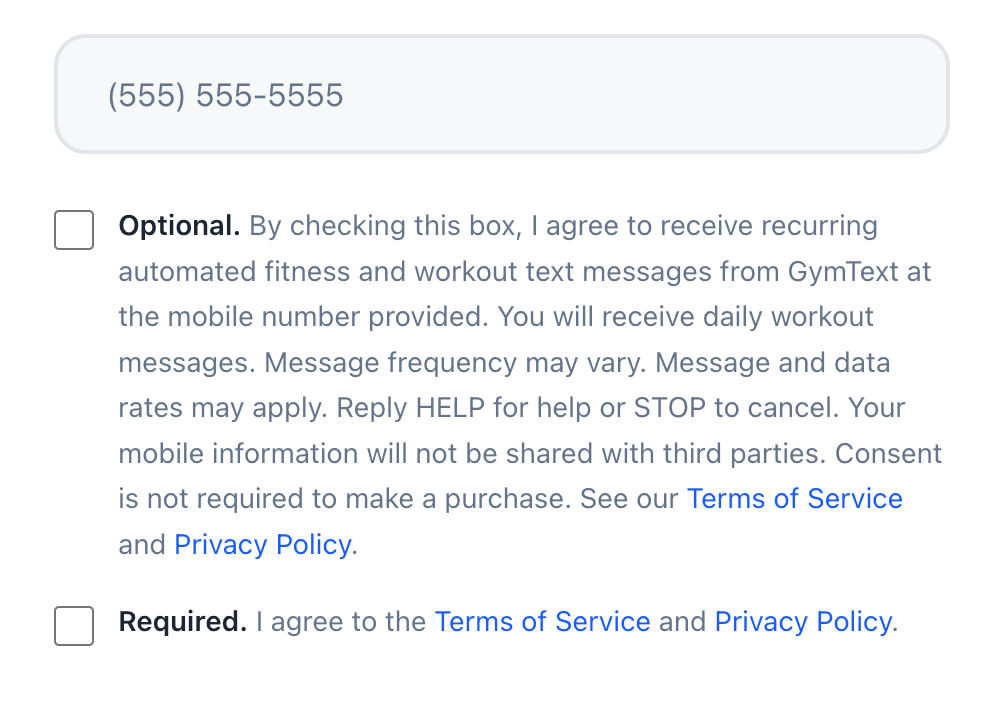
By checking this box, I agree to receive recurring automated fitness and workout text messages from GymText at the mobile number provided. You will receive daily workout messages. Message frequency may vary. Message and data rates may apply. Reply HELP for help or STOP to cancel. Your mobile information will not be shared with third parties. Consent is not required to make a purchase.
Here is how the two checkboxes appear on the signup form, captured at full resolution so the language can be read directly:
What you’ll receive
Examples of the kinds of messages users get:
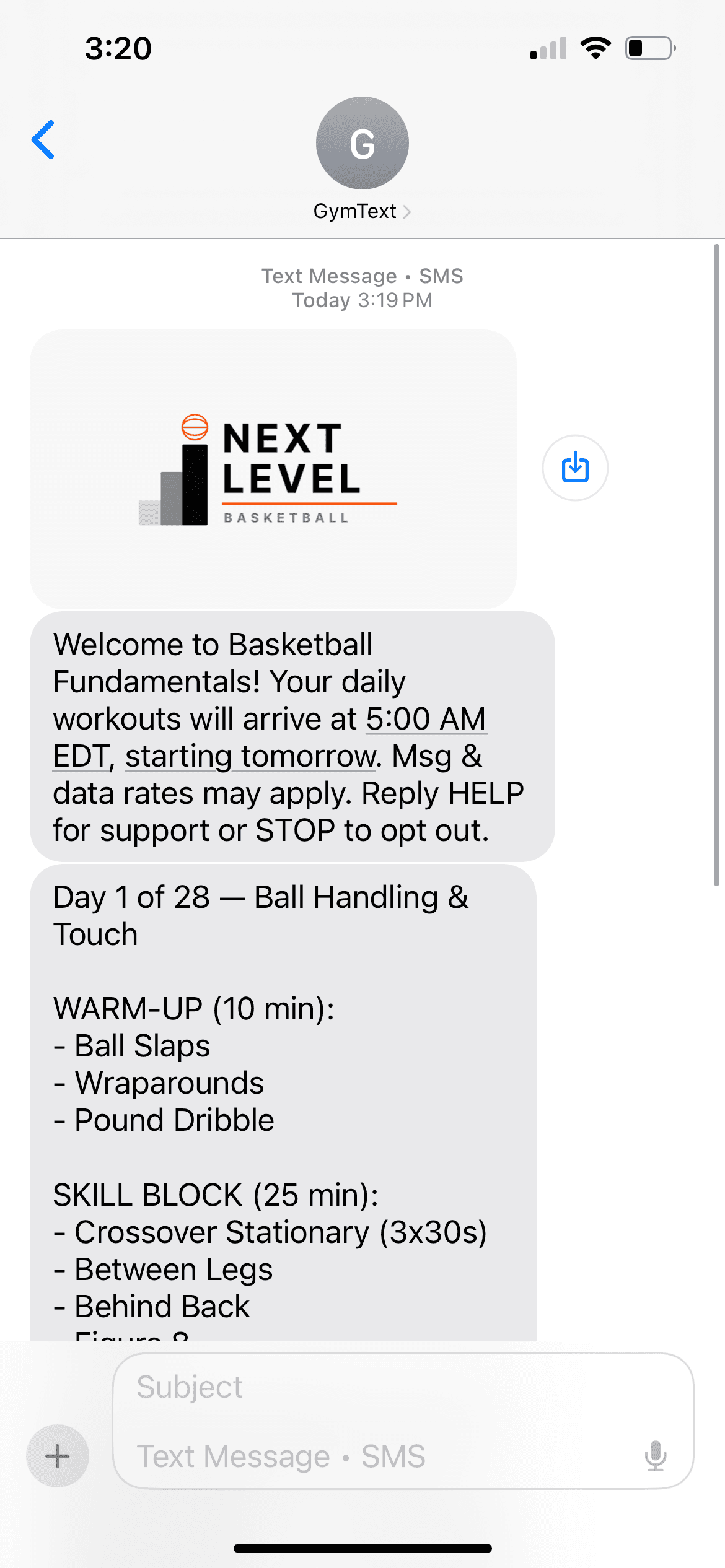
- Welcome (sent immediately after signup)Welcome to Iron Forge! Ready to transform your fitness? We'll be texting you daily workouts starting tomorrow at 7:00 AM Pacific. Msg & data rates may apply. Reply HELP for support or STOP to opt out.
- Daily workoutDay 6 of 28 — Lower body strength. Warmup: 5min row. Main: 4x6 back squat at working weight, 3x8 RDL, 3x10 split squat per side. Finisher: 5x20 calf raise. Reply with questions or how it went.
- Conversational coaching replyGood question. For squat depth, focus on driving your knees out and keeping your chest up. If your hips tuck under at the bottom, try a 2-second pause at depth on warmup sets to build the position. Let me know how it feels next session.
- Program upsell / next-block inviteLoved your current program? Coach Sam's next 6-week conditioning block opens Monday. Browse open programs at https://coaching.gymtext.co/start. Msg & data rates may apply. Reply STOP anytime to opt out.
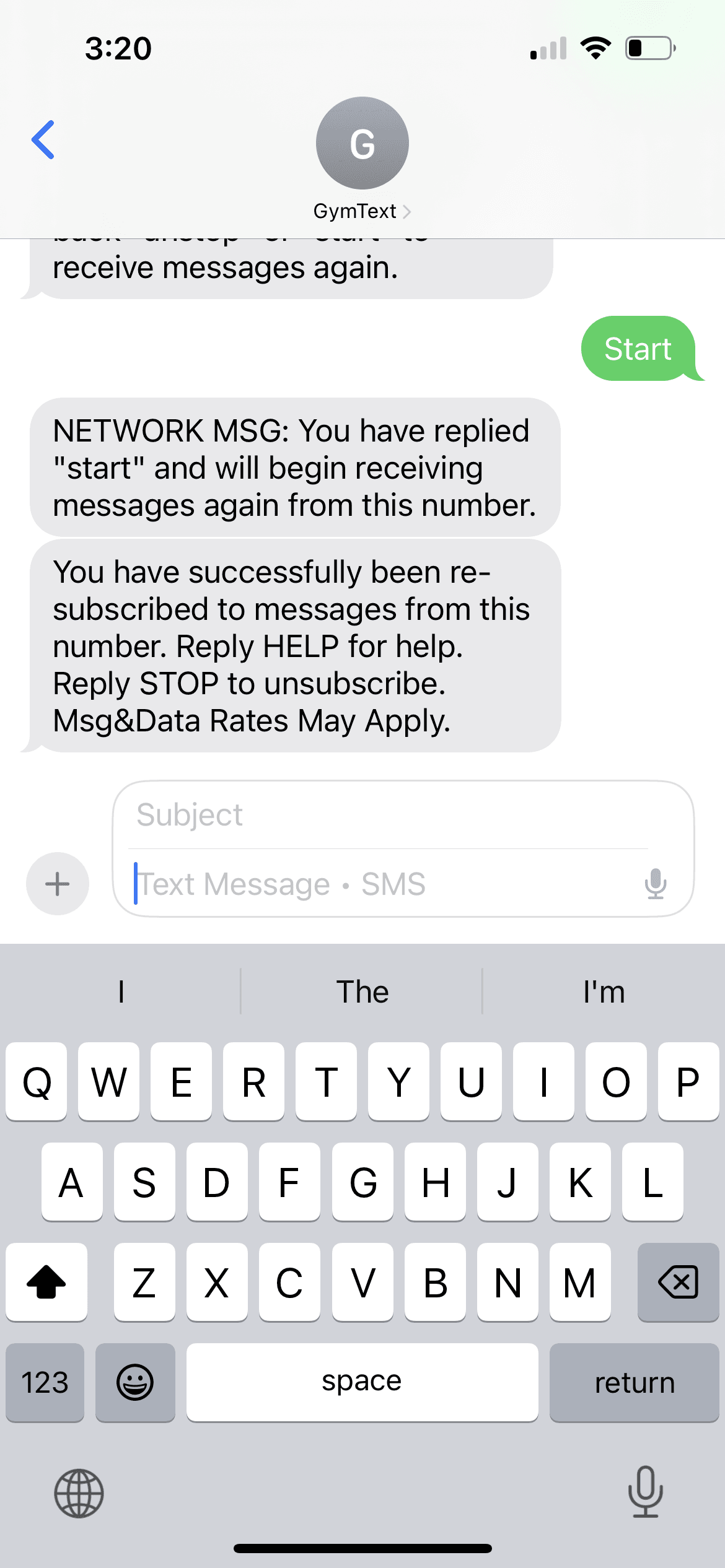
- Re-opt-in confirmation (after a user texts START)GymText: You are opted in. You will receive your next daily workout at your scheduled time. Msg & data rates may apply. Reply HELP for help, STOP to opt out.
A real daily workout as it arrives in the user’s Messages app:
Message frequency
Approximately one message per day, at the local time the user selected during signup, plus occasional replies to messages the user sends back to us. There are no promotional blasts.
Cost
GymText does not charge a per-message fee. Standard message and data rates from your wireless carrier may apply.
Stopping, pausing, and getting help
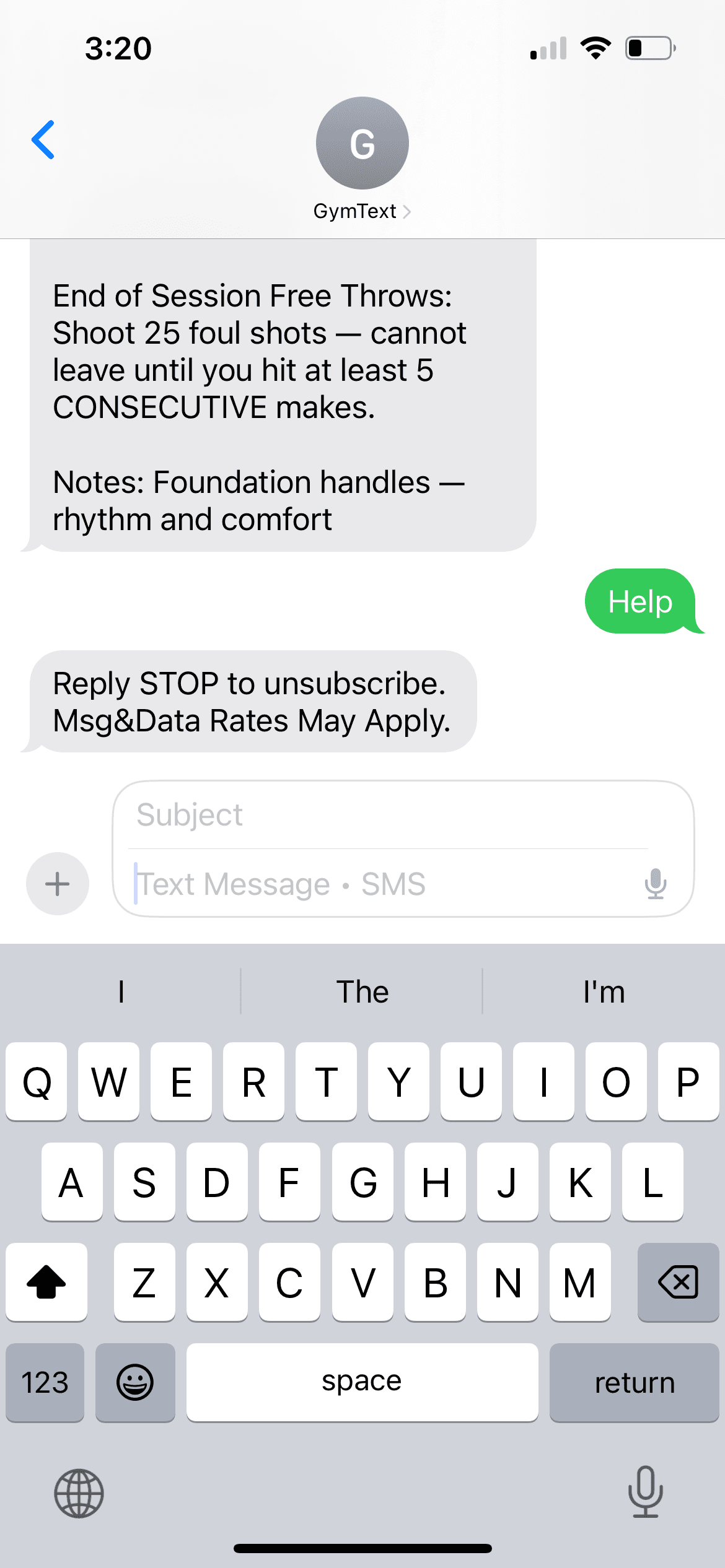
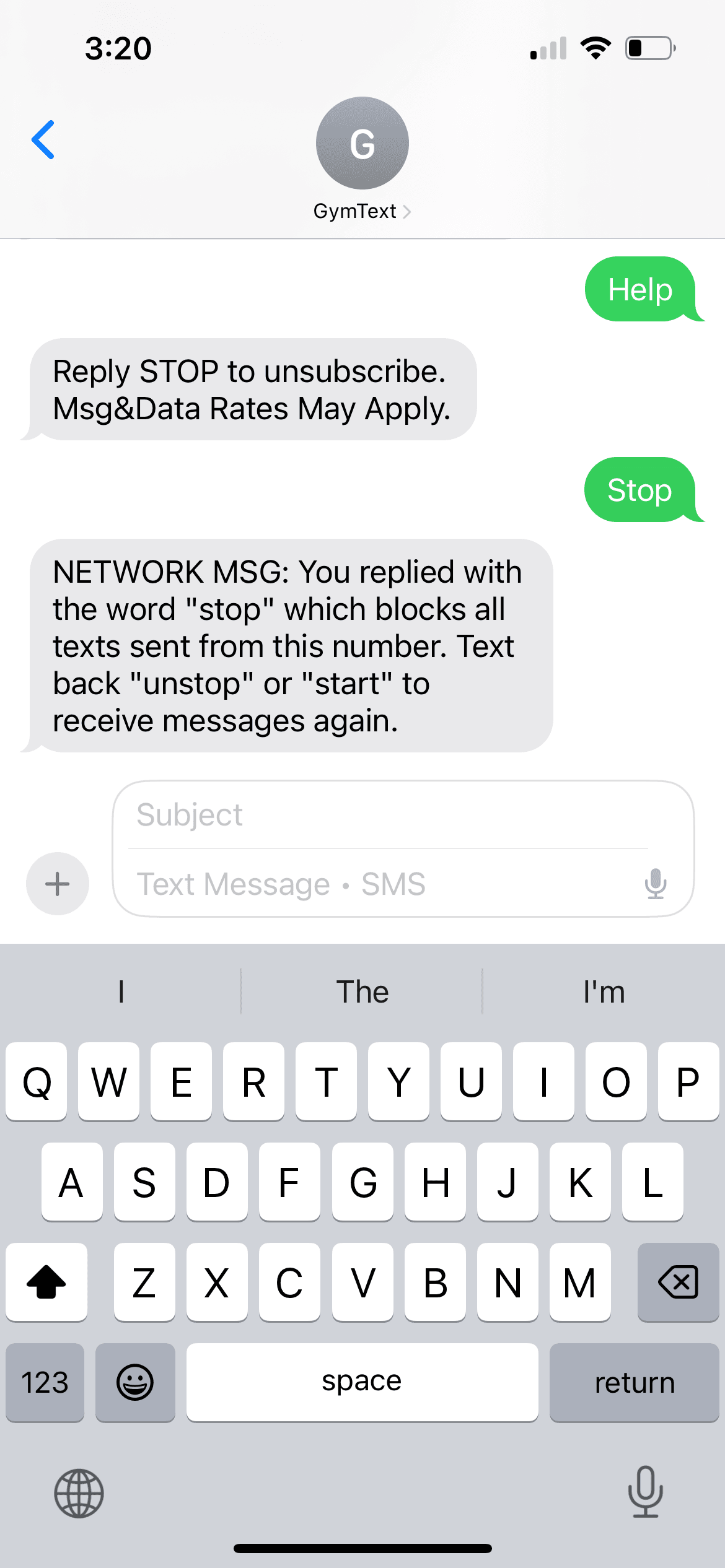
You can stop messages at any time by replying with any of these keywords to any message we send:
OPTOUT, CANCEL, END, QUIT, UNSUBSCRIBE, REVOKE, STOP, STOPALL
Your wireless carrier will send you a one-time confirmation of the opt-out. To resume messages later, reply:
START, UNSTOP, SUBSCRIBE
For help, reply HELP or INFO to receive an auto-reply explaining how to unsubscribe, or email support@gymtext.co.
Managing SMS from your account
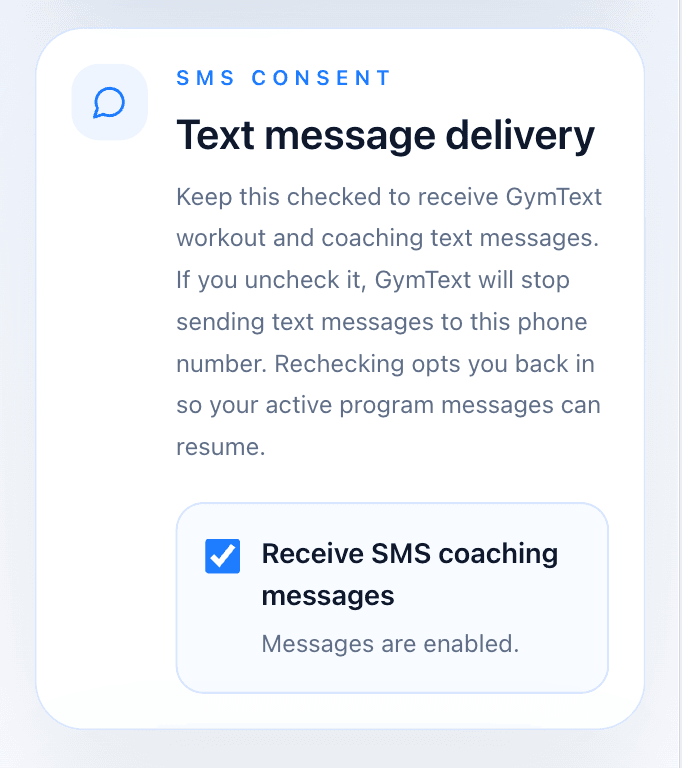
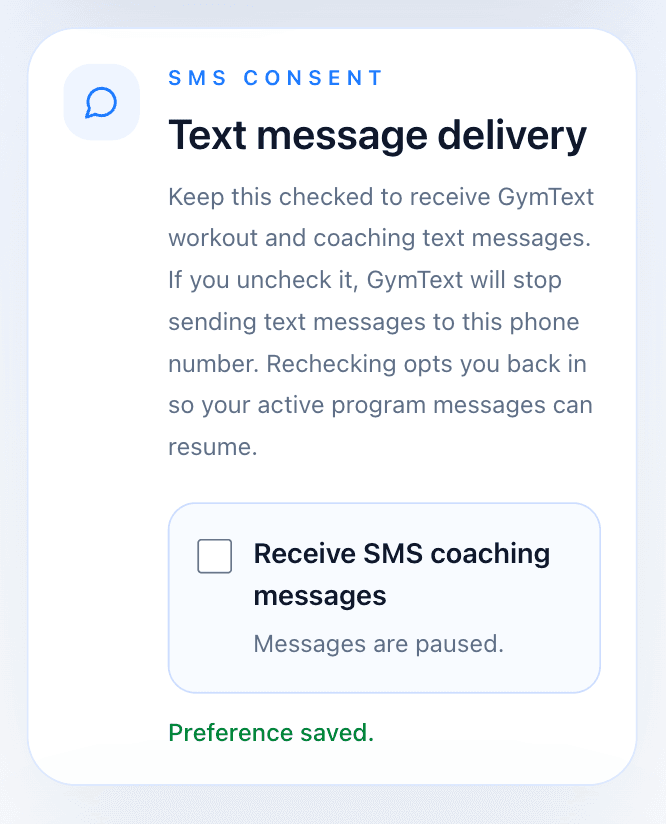
Signed-in users can pause and resume SMS at any time from their account settings, without having to text STOP. Toggling the box off records a preference change and stops further messages; toggling it back on resumes the user’s active program messages.
Canceling your enrollment
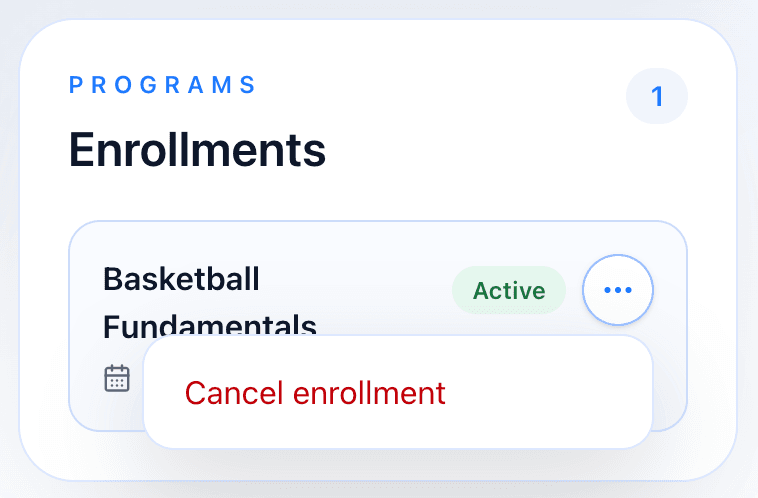
Users can also cancel an individual program enrollment from Account → Programs. Canceling an enrollment stops the workout messages tied to that program; if the user has no other active enrollments and SMS is paused, no further messages will be sent.
Your privacy
No mobile information will be shared with third parties or affiliates for marketing or promotional purposes. Phone numbers and SMS opt-in records are shared only with the service providers strictly necessary to deliver the SMS service (today: Twilio). For the full statement, see our Privacy Policy.
See also our Terms of Service and Privacy Policy.